VS Code 1.108.2 release notes: the recovery build you install when 1.108 acts weird
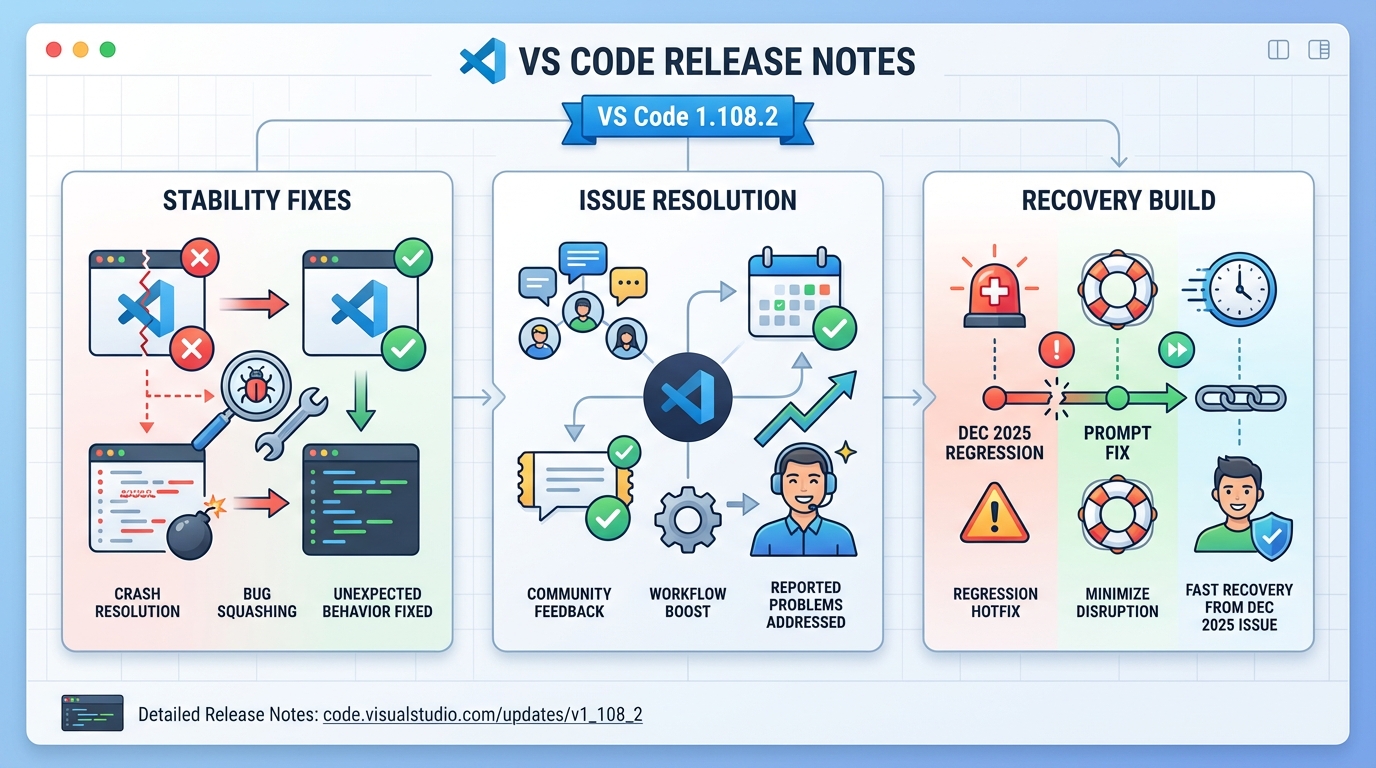
I’ve watched “minor” VS Code updates take down a whole morning. 1.108.2 exists for that exact kind of day, it’s a recovery build that targets stability regressions from the 1.108 cycle, not a feature drop.
My take: upgrade fast if you hit the regression
Do not treat “recovery build” as a marketing label. In most teams it means “we shipped a bad interaction somewhere, now we’re patching it quickly.” If VS Code started crashing, freezing, or rendering garbage after you moved to 1.108, you probably want 1.108.2.
- Upgrade now: You see crashes, UI glitches, or “this feels broken” behavior that started right after the December 2025 (1.108) update.
- Stage it: Your editor works fine and you manage a fleet, canary 5 to 10 developers for 48 hours, then roll wider.
- Wait a bit: You pin VS Code versions for compliance, or you run a fragile extension stack, test first, then deploy.
What actually changed (with upstream links)
This bit me once on macOS. The app resumes from sleep and the editor looks like a scrambled TV channel, then somebody says “VS Code is broken” and everyone starts rebooting laptops like it’s 2009.
- macOS rendering regression workaround: Upstream tracked “broken rendering on macOS after app resumed from idle state” and related reports, and the recovery update includes the fix/backport work tied to the December 2025 Recovery 2 milestone. See issue #284162 and the related fix PRs #288141 (main) and #289308 (release backport) in the official repo.
- Everything else: Other closed items live under the upstream milestone for December 2025 Recovery 2. I don’t trust “stability improvements” bullets without issue links, so use the milestone list as the source of truth.
Ignore the GitHub commit count. It’s a vanity metric. Read the issues fixed and decide if you have that problem.
How to upgrade (fast path, then the “admin” path)
Keep it simple. If you just need the patch on your own machine, use the built-in updater and move on.
- In-app update (quickest): Open VS Code. On Windows/Linux, go to Help > Check for Updates. On macOS, go to Code > Check for Updates, then restart when prompted.
- Manual install: If your updater fails or you manage installs centrally, download the installer from the official VS Code site, install over the top, then restart.
- Enterprise note: If you block auto-updates, roll this out like any other desktop app patch. Canary first. Push the installer with your normal tooling. Do not flip the switch for everyone at 4 p.m.
Verify the fix in 60 seconds
Check the version. Then try to break it the same way it broke before.
- Confirm the version: Open Help > About and confirm you see 1.108.2.
- Smoke test your real workflow: Open your biggest workspace, run one test, and open the command palette. If you use Remote SSH or dev containers, connect once and watch for extension host errors.
- If the bug was visual: Put the machine to sleep, wake it, and watch the editor render. Boring is the goal.
Known issues (and why “none” is almost never true)
I don’t believe “known issues: none” from any project. Check the upstream milestone anyway, because people file bugs before release notes catch up.
- Upstream tracker: Use the official December 2025 Recovery 2 milestone/issues list to see what got fixed and what users still report.
- If you hit something new: Grab logs, file an issue, and include your OS version, GPU, and repro steps. “It broke” wastes everyone’s time.
Official links
Start here. Then fall down the rabbit hole if you need to.
- GitHub release: https://github.com/microsoft/vscode/releases/tag/1.108.2
- Recovery milestone/issues list: https://github.com/Microsoft/vscode/issues?q=is%3Aissue+milestone%3A%22December+2025+Recovery+2%22+is%3Aclosed+
There’s probably a cleaner way to validate this across every OS image in a company, but this checklist catches the obvious failures quickly.
CLI update commands for every platform
The built-in updater works fine for most people. But if you manage VS Code across a team or you hit updater issues, here are the direct approaches.
# Check your current VS Code version from terminal
code --version
# Expected output after update:
# 1.108.2
# <commit-hash>
# <arch>
# macOS: update via Homebrew (if you installed that way)
brew update && brew upgrade --cask visual-studio-code
# Linux (apt-based distros):
sudo apt update && sudo apt install --only-upgrade code
# Linux (yum/dnf-based distros):
sudo dnf check-update code && sudo dnf upgrade code
# Windows (winget):
winget upgrade Microsoft.VisualStudio.CodeFor enterprise deployments using silent installs:
# Windows silent install (for SCCM/Intune deployment)
VSCodeSetup-x64-1.108.2.exe /verysilent /mergetasks=!runcode

# Linux: download and install specific version
curl -L "https://update.code.visualstudio.com/1.108.2/linux-deb-x64/stable" -o vscode.deb
sudo dpkg -i vscode.deb
Verify the fix: macOS rendering regression
The main fix in 1.108.2 targets issue #284162 where the editor renders garbage after macOS wakes from sleep. Here’s how to confirm it’s actually fixed on your machine:
# 1. Check VS Code is using the correct GPU renderer
# Open Command Palette (Cmd+Shift+P) and run:
# > Developer: Open Process Explorer
# Look for "GPU Process" — it should show "Hardware accelerated"

# 2. Check for rendering-related settings in your user config
code --locate-shell-integration-path bash
cat ~/Library/Application\ Support/Code/User/settings.json | grep -i "gpu\|render"

# 3. If you previously disabled GPU as a workaround, re-enable it:
# Remove these lines from settings.json if present:
#   "disable-hardware-acceleration": true
#   "terminal.integrated.gpuAcceleration": "off"
The upstream fix was backported in PR #289308. If you’re still seeing rendering issues after 1.108.2, check the December 2025 Recovery 2 milestone for remaining open issues.
Extension compatibility check
Recovery builds sometimes expose extension incompatibilities. Quick way to verify your extensions are happy:
# List all installed extensions with versions
code --list-extensions --show-versions

# Check for extensions with known issues (look at Extension Host log)
# Command Palette > Developer: Show Logs > Extension Host

# Disable all extensions and test (nuclear option for debugging)
code --disable-extensions
Monitor your VS Code version health alongside your whole stack using the Stack Health Scorecard, or check the latest VS Code release status on the VS Code releases hub.
Related Reading
- VS Code 1.108.0 release notes
- Version health badges for all your tools
- Node.js LTS guide (VS Code runs on Node)
🛠️ Try These Free Tools
Plan your upgrade path with breaking change warnings and step-by-step guidance.
Paste your workflow YAML to audit action versions and pinning.
Paste a PEM certificate to check expiry and get a security grade.
Track These Releases